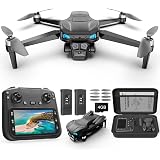
The world of drone piloting offers an exciting gateway to aerial photography, videography, and simply the thrill of flight. For many enthusiasts, the initial challenge lies not in the drone itself, but in deciphering the intricate controls that bring these devices to life. Understanding how to fly a drone effectively begins with a comprehensive grasp of its remote controller, which acts as your direct link to the sky. While the accompanying video provides an excellent visual demonstration, this guide aims to deepen your understanding with detailed explanations, practical insights, and crucial tips for beginner drone pilots.
Decoding the Drone Controller: The Standard Configuration for Beginners
Most drones, particularly those designed for recreational or entry-level use, adhere to a standardized control layout, often referred to as Mode 2. This configuration is widely adopted across the industry, meaning that once you learn it, the transition to different drone models becomes significantly easier. Your drone’s remote control unit typically features two primary joysticks, along with several buttons and dials, each serving a specific function in guiding your aerial vehicle.
While some advanced drones or personal preferences might lead to alternative configurations, mastering the standard setup is foundational. It provides a consistent framework for flight maneuvers, allowing pilots to build muscle memory and intuitive control. Therefore, focusing on this common configuration ensures a smooth learning curve for anyone embarking on their drone flying journey.
The Left Joystick: Altitude and Rotational Control (Yaw)
The left joystick on your drone controller is predominantly responsible for vertical movement and the drone’s rotation around its vertical axis, commonly known as yaw. Understanding these functions is paramount for maintaining stable flight and precise positioning. Indeed, many beginner drone pilots find that getting comfortable with the left joystick’s input is a critical first step towards confident flying.
Ascend and Descend
When you push the left joystick upwards, the drone will respond by increasing its motor speed, causing it to ascend into the sky. Conversely, pulling the left joystick downwards will decrease motor speed, prompting the drone to descend. This direct control over altitude is vital for navigating around obstacles and achieving desired shot heights. It is advisable to practice smooth, gradual inputs to avoid sudden, jerky movements.
Rotate Left and Right (Yaw)
Pushing the left joystick to the left will cause the drone to rotate counter-clockwise on its central axis, similar to pivoting on a spot. Pushing it to the right will induce a clockwise rotation. This yaw control allows you to change the drone’s facing direction without altering its position in horizontal space. For instance, you can keep the drone hovering in one location while rotating it to capture a panoramic view, which is a fundamental technique in aerial videography.
The Right Joystick: Directional Movement (Pitch and Roll)
While the left joystick manages verticality and rotation, the right joystick governs the drone’s horizontal movement across space. This includes moving forward, backward, and side-to-side, which are crucial for dynamic flight and navigating through environments. A solid understanding of these controls enables pilots to move their drones with precision and grace, thereby enhancing their overall flying experience.
Move Forward and Backward (Pitch)
Pushing the right joystick upwards will tilt the drone’s nose downwards, causing it to pitch forward and move in that direction. Pulling the joystick downwards will tilt the drone’s nose upwards, initiating backward movement. This forward and backward motion is fundamental for exploring areas and positioning the drone relative to subjects or scenes. Consequently, smooth pitch control is essential for tracking moving objects or performing fly-through shots.
Strafe Left and Right (Roll)
When you push the right joystick to the left, the drone will tilt to its left side and move laterally in that direction; this is known as rolling or strafing left. Similarly, pushing the joystick to the right will make the drone roll to its right, moving sideways. This strafing capability allows for parallel tracking shots, sidestepping obstacles, and fine-tuning the drone’s position without changing its heading, which is incredibly useful for creative aerial photography.
Mastering Gimbal Control for Cinematic Shots
Beyond basic flight, many drones are equipped with a camera mounted on a motorized gimbal, a crucial component for capturing stable, professional-looking footage. The gimbal automatically compensates for drone movements, keeping the camera level and steady. Furthermore, pilots can usually control the camera’s tilt, allowing for a wide range of creative angles.
Vertical Gimbal Movement
On most drone controllers, particularly those from manufacturers like DJI, a jog wheel or dial, often located on the upper left-hand corner, controls the gimbal’s vertical tilt. Rolling this wheel up or down will smoothly adjust the camera’s angle, from looking straight ahead to pointing directly downwards. Some newer drone models even offer an extended range, allowing the camera to tilt slightly above the horizon, which can be advantageous for unique ground-up shots.
The speed at which the gimbal tilts can usually be customized within the drone’s accompanying app or software. Setting a slower speed allows for smoother, more cinematic camera movements, reducing the likelihood of abrupt transitions in your footage. Conversely, a faster speed might be preferred for quick adjustments or surveying. Given the importance of smooth camera work in aerial videography, practice with the gimbal control is just as essential as mastering the flight joysticks.
Beyond the Joysticks: Essential Buttons and Functions
Modern drone controllers feature a variety of additional buttons and switches that enhance flight safety, simplify operations, and unlock advanced capabilities. Familiarity with these functions is vital for a comprehensive understanding of how to fly a drone efficiently and safely.
Flight Speed Modes
Many controllers include a dedicated switch or button to toggle between different flight speed modes. These often include a “Normal” mode for balanced flight, a “Sport” mode for increased speed and agility (often disabling some safety features), and sometimes a “Cine” or “Tripod” mode designed for extremely slow, stable movements ideal for cinematic recording. For beginners, starting in a slower, more forgiving mode is highly recommended to build confidence and control before attempting faster flights.
Return to Home (RTH)
The Return to Home (RTH) button is a critical safety feature that, when pressed, commands the drone to automatically fly back to its pre-recorded take-off point using GPS. Before every flight, it is imperative to set a safe RTH altitude in your drone’s app. This ensures the drone ascends high enough to clear any potential obstacles, such as trees or buildings, before initiating its return journey. Neglecting this crucial step can lead to collisions, particularly in complex environments.
While RTH is a valuable failsafe, there are scenarios where manual flight back to the pilot is preferable, especially if the pilot has moved significantly from the original take-off point or if environmental conditions have changed. Thus, while beneficial, RTH should not replace the pilot’s ability to navigate manually. It functions primarily as a safety net.
Customizable Function Buttons (Fn)
Many advanced drone controllers, especially those from DJI, incorporate one or more customizable function (Fn) buttons. These buttons can be programmed within the drone’s app to perform various actions with a single press, significantly streamlining the pilot’s workflow. Common assignments include snapping the gimbal to a straight-ahead or straight-down position, initiating autofocus, or controlling exposure settings. Tailoring these buttons to your flying style can make complex maneuvers simpler and more intuitive, allowing for more focus on the flight itself rather than searching for menu options.
The Unsung Hero: Practice and Spatial Awareness
Regardless of how well one understands the theoretical aspects of drone controls, practical application is paramount. The video rightly emphasizes the critical importance of taking your drone to a large, open field for initial practice sessions. This environment minimizes the risk of collisions and provides ample space to become accustomed to your drone’s responsiveness and movement patterns.
For instance, an early mishap involving a Phantom 2 drone and a palm tree highlights the consequences of inadequate practice in a safe environment. Such incidents underscore the necessity of developing muscle memory and an intuitive feel for the drone’s behavior in various flight conditions. Beginning with basic exercises, such as hovering in place, then slowly progressing to flying squares, circles, and figure-eights, can significantly enhance your control skills. Furthermore, practice helps hone your spatial awareness – the ability to accurately judge the drone’s position, distance, and orientation relative to its surroundings, which can often be deceptive when viewing from a screen or from the ground.
Hovering Over Your Drone Questions
What is a drone controller?
The drone controller is your direct link to the drone, allowing you to guide it through the sky using joysticks, buttons, and dials.
What do the left and right joysticks on a drone controller do?
The left joystick controls the drone’s altitude (ascend/descend) and rotation (yaw), while the right joystick controls its horizontal movement (forward, backward, and side-to-side).
What is gimbal control used for on a drone?
Gimbal control is used to adjust the camera’s vertical tilt, helping you capture stable and professional-looking photos or videos by keeping the camera steady.
What is the ‘Return to Home’ (RTH) feature?
Return to Home (RTH) is a critical safety feature that, when activated, makes the drone automatically fly back to its take-off point using GPS.